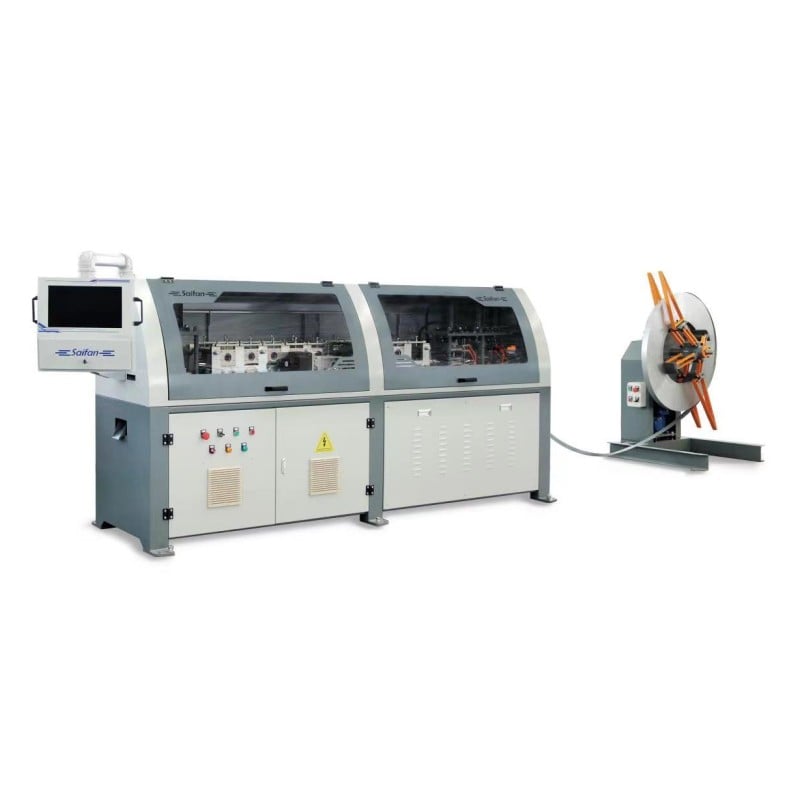
١.١ واجهة التشغيل التمهيدية
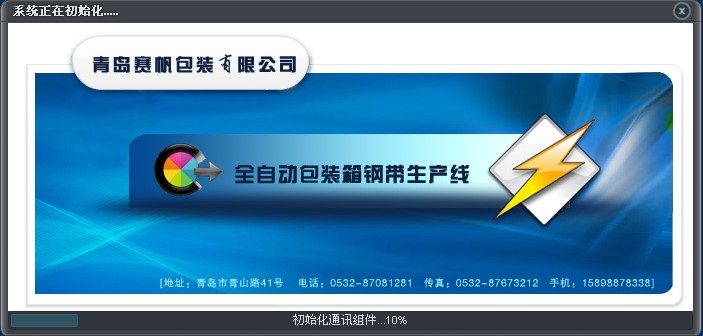 |
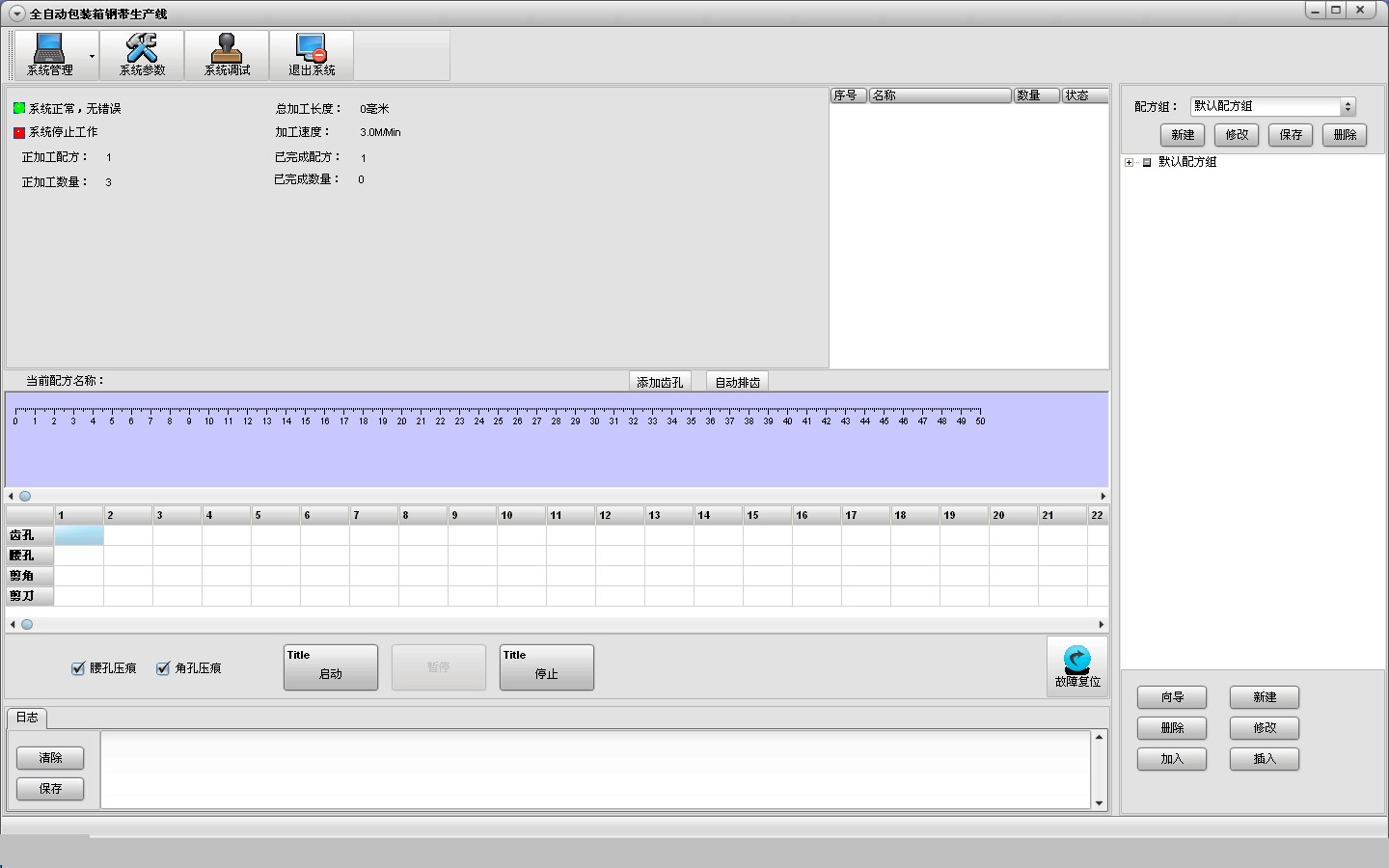 |
| الشكل ١.١ |
الشكل ١.٢ |
١.٢.١ إدارة النظام
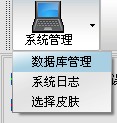
يظهر الشكل ١.٣.
 |
 |
| الشكل ١.٣ |
الشكل ١.٤ |
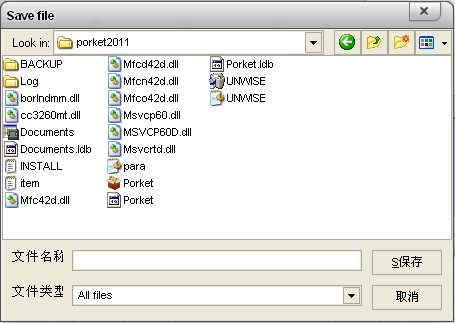
انقر على «إدارة قاعدة البيانات»، كما هو موضح في الشكل ١.٤. وفي حقل اسم الملف، أدخل التنسيق التالي: [اسم قاعدة البيانات المراد نسخها احتياطيًّا].mdb؛ وفي حقل «البحث في»، اختر الدليل الذي ترغب في حفظ الملف فيه، ثم سيتم حفظ ملف قاعدة البيانات.
انقر على «سجل النظام» للوصول إلى سجل العمل.
انقر على «اختيار الثيم» لتغيير مظهر الواجهة.
١.٢.٢ معاملات النظام
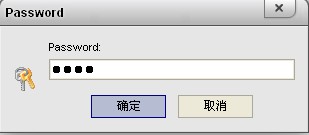
انقر على «معاملات النظام»، وأدخل كلمة المرور ٦٦٦٦، كما هو موضح أدناه:
الشكل ١.٥
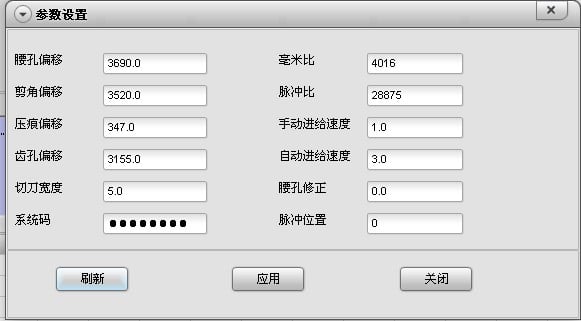
انقر على «موافق»، كما هو موضح أدناه:
الشكل ١.٦
هنا يمكنك تعديل معاملات النظام وسرعة الجهاز. راجع القسم ١.٥.٣ لمعرفة الطريقة المحددة للتعديل.
١.٢.٣ تصحيح أخطاء النظام
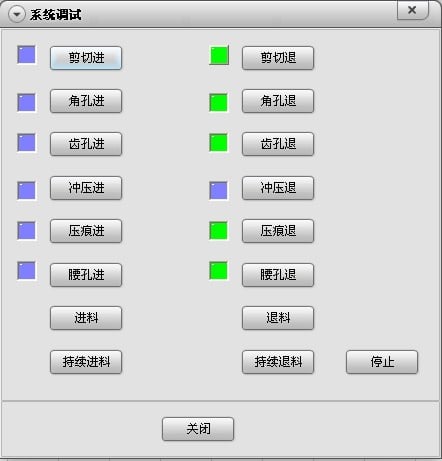
انقر على خيار تصحيح النظام. وفي الظروف العادية، تكون أضواء العمود الأيسر باللون الأزرق، بينما تكون أضواء العمود الأيمن باللون الأخضر، كما يلي:
الشكل ١٫٧
تتيح هذه الواجهة التشغيل اليدوي لإجراءات القالب الخاصّ بالجهاز. والفرق بين وضع التغذية ووضع التغذية المستمرة هو أن وضع التغذية يعمل في الوضع الجزئي (Jog Mode)، أي يتوقف عجلة التشكيل عن الدوران فور تحرير الزر باستخدام الماوس. أما وضع التغذية المستمرة فيعمل بشكل دائم، ويجب النقر على زر إيقاف عجلة التشكيل لإيقاف الدوران.
١٫٢٫٤ الخروج من النظام
كما يلي:
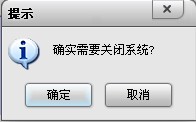
الشكل ١٫٨
انقر على موافق للخروج من النظام.
١٫٢٫٥ شريط معلومات الجهاز
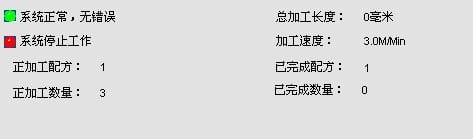
الشكل ١٫٩
يُستخدَم لتوضيح معلومات المعالجة.
١٫٢٫٦ إدارة مجموعات الوصفات
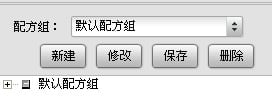
الشكل ١.١٠
يُنشئ «جديد» مجموعةً جديدةً يمكن استخدامها لتصنيف الوصفات. انقر فوق «جديد» كما يلي:
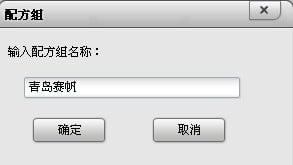
الشكل ١.١١
أدخل اسم مجموعة الوصفات «Qingdao Saifan»، ثم انقر فوق «موافق» كما يلي:
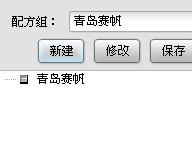
الشكل ١.١٢
يمكنك تعديل اسم مجموعة الوصفات. انقر فوق اسم مجموعة الوصفات «Qingdao Saifan»، ثم انقر فوق «تعديل»:
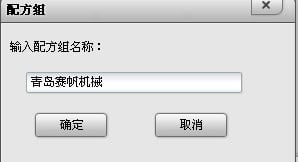
الشكل ١.١٣
أدخل الاسم المعدَّل «Qingdao Saifan Machinery» وتأكيد ذلك:
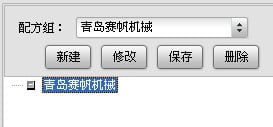
الشكل ١.١٤
للحذف مجموعةٍ ما، يمكنك تحديدها من السهم المنسدل:
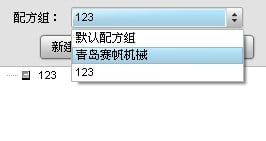
الشكل ١.١٥
اختر ١٢٣، ثم انقر فوق حذف لحذف المجموعة ١٢٣ وجميع الوصفات الموجودة فيها.
زر الحفظ غير مطلوب.
١.٢.٧ تشغيل الوصفات
• المعالج
هذه أداة تُستخدَم لتحرير الوصفات، ويمكنك من خلالها إدخال أبعاد كل صندوق. وقبل استخدام هذه الأداة، يجب أولًا استدعاء مجموعة وصفات لتصنيف الوصفات. استدعِ أولًا «تشينغداو سايفان ماشينري»، ثم انقر فوق المعالج:
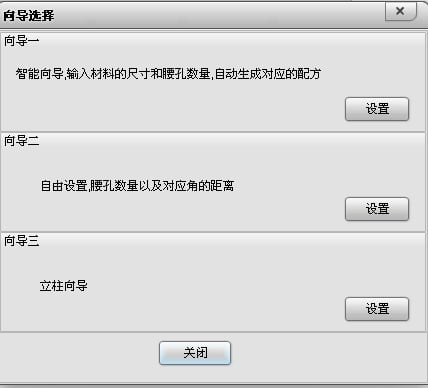
الشكل ١.١٦
اختر المعالج الأول:
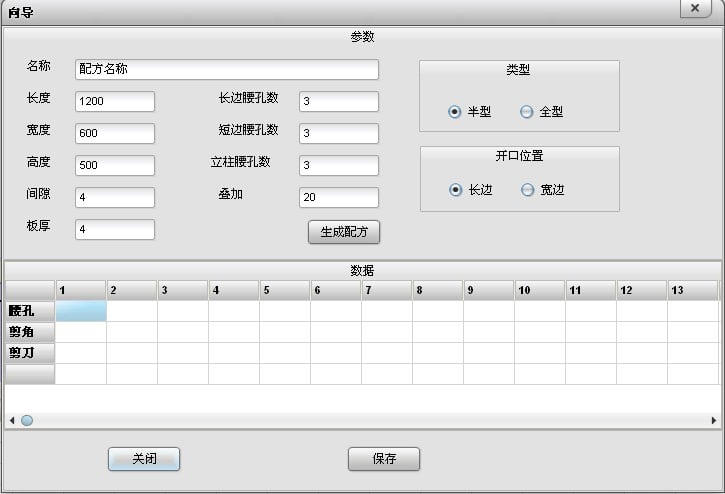
الشكل ١.١٧
الاسم: اسم الصندوق.
الطول: طول العلبة.
العرض: عرض العلبة.
الارتفاع: ارتفاع العلبة.
الفجوة: مقدار ما يزيد فيه الحزام الفولاذي عن اللوح الخشبي.
سماكة اللوح: سماكة اللوح الخشبي.
عدد ثقوب الخصر على الجانب الطويل: عدد وسائل التثبيت على الجانب الطويل من العلبة.
عدد ثقوب الخصر على الجانب القصير: عدد ثقوب الخصر على الجانب القصير من العلبة.
عدد ثقوب الخصر على العمود: عدد ثقوب الخصر على امتداد ارتفاع العلبة.
التداخل: طول المفصل النهائي للحزام الفولاذي.
النوع النصفي: يلف الحزام الفولاذي نصف الغطاء السفلي؛ ويُحتاج إلى حزامين للف اللوح الخشبي بالكامل.
النوع الكامل: يلتف حزام الفولاذ حول المحيط الكامل للغطاء السفلي.
موضع الفتح على الجانب الطويل: بعد لف حزام الفولاذ، يكون المفصل على الجانب الطويل.
موضع الفتح على الجانب القصير: بعد لف حزام الفولاذ، يكون المفصل على الجانب القصير.
بعد إدخال البيانات المقابلة، انقر فوق 'توليد الوصفة':
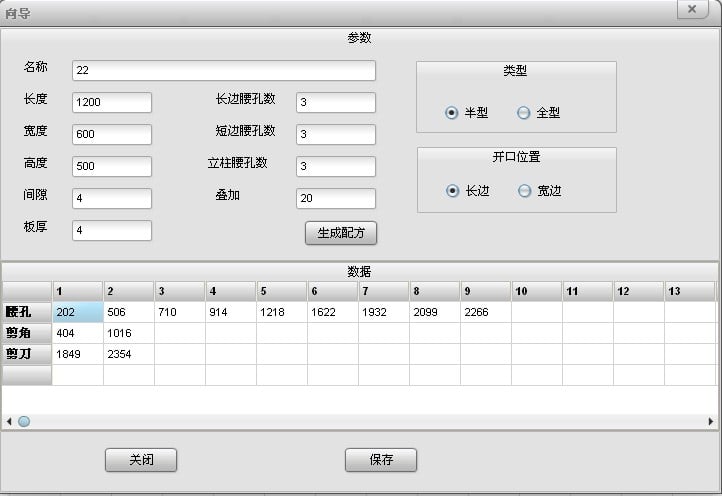
الشكل ١.١٨
انقر فوق 'حفظ'، وتُضاف وصفة رقم ٢٢ تحت شركة سيفان ماشينري. ومن الآن فصاعدًا، يمكن البحث عن جميع الوصفات ومعالجتها مباشرةً هنا:
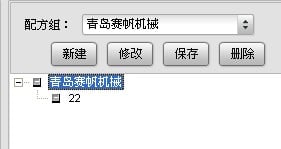
الشكل ١.١٩
انقر نقرًا مزدوجًا على الرقم ٢٢:
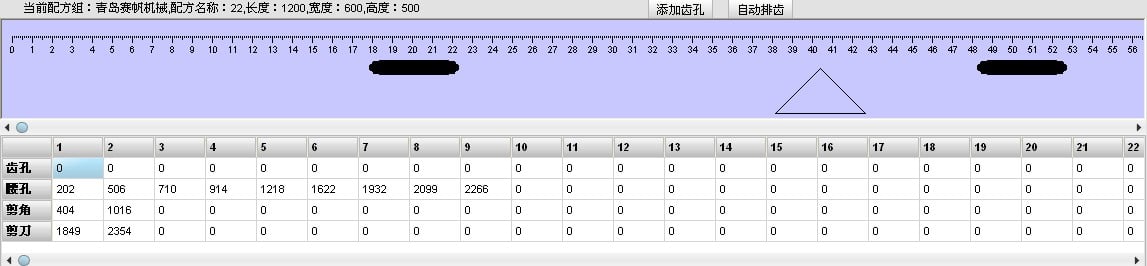
الشكل ١.٢٠
يمكنك عرض المعلومات التفصيلية لهذه الوصفة، مثل الرسومات والبيانات. انقر فوق 'ترتيب الأسنان تلقائيًّا'، وبعد نقل ثقوب الأسنان إلى الموضع المطلوب، يمكن معالجة هذه الوصفة:
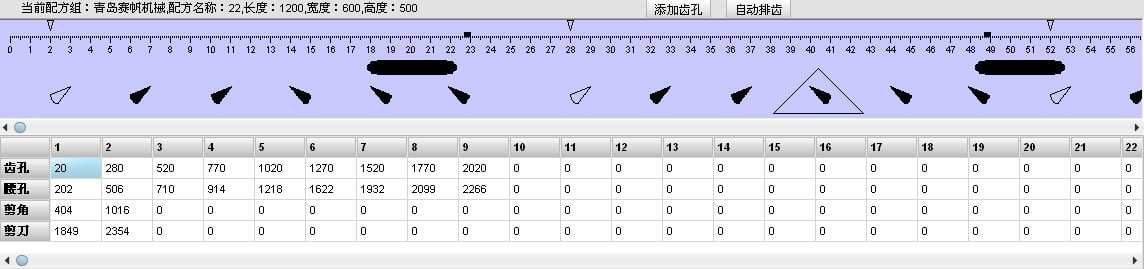
الشكل ١.٢١
اختر المعالج الثاني:
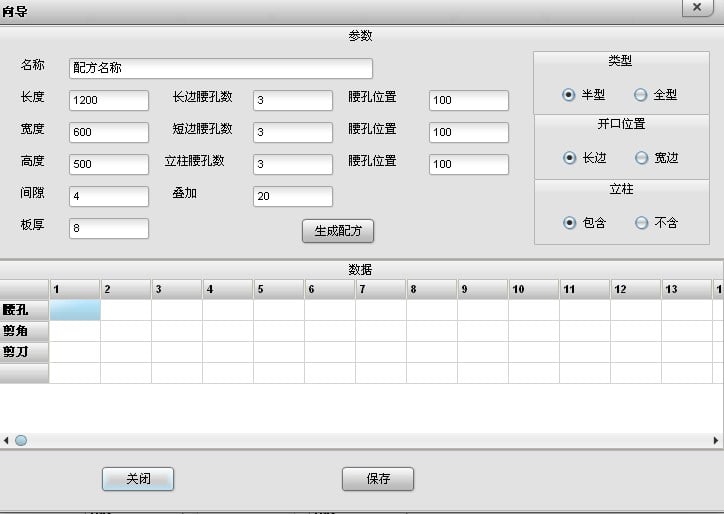
الشكل ١.٢٢
ما عدا موضع فتحة الخصر، فإن كل شيء آخر مماثل للمعالج الأول.
موضع فتحة الخصر: المسافة من مركز أول فتحة خصر على الضلع الطويل إلى أقرب فتحة زاوية تُعبّر عن موضع فتحة الخصر على الضلع الطويل؛ والمسافة من مركز أول فتحة خصر على الضلع العريض إلى أقرب فتحة زاوية تُعبّر عن موضع فتحة الخصر على الضلع العريض؛ والمسافة من مركز أول فتحة خصر على الارتفاع إلى حافة قطع الارتفاع تُعبّر عن موضع فتحة الخصر على الارتفاع.
تضمّن العمود أم لا: يُستخدم لتصنيع الغطاء السفلي بشكل منفصل.
اختر المعالج الثالث:
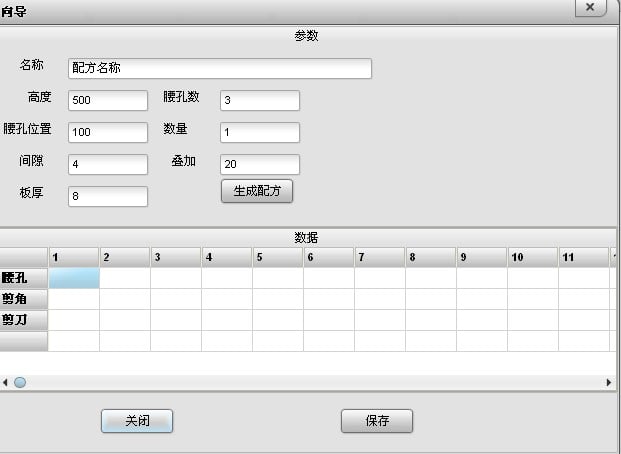
الشكل ١.٢٣
تجاهل الفجوة وسماكة اللوحة والتداخل. وهنا، يشير العدد إلى عدد الأعمدة المرتبة معًا لتوزيع الأسنان، وليس إلى عدد الأعمدة التي نحتاج إلى معالجتها.
• جديد
إنشاء وصفة فارغة، وهي قابلة للتطبيق على الأحجام غير القياسية:
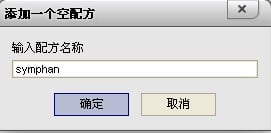
الشكل ١.٢٤
انقر فوق «جديد»، وأدخل «symphan»، ثم أكّد:
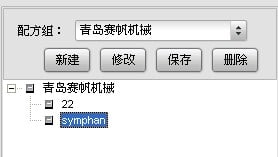
الشكل ١.٢٥
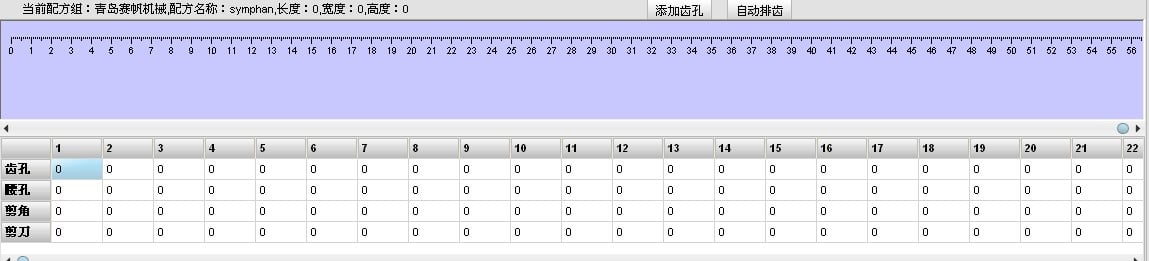
الشكل ١.٢٦
يجب إدخال البيانات يدويًّا في الجدول لإنشاء علب غير قياسية.
• حذف
اختر أولًا الوصفة غير المستخدمة، ثم انقر فوق «حذف» لإزالتها.
• تعديل
اختر الوصفة التي ترغب في تعديل اسمها، ثم يمكنك تعديل اسم الوصفة:
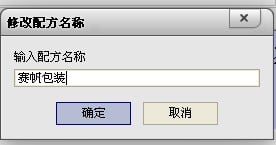
الشكل ١.٢٧
بعد التأكيد، يصبح «٢٢» «سايفان باكيجينغ»:
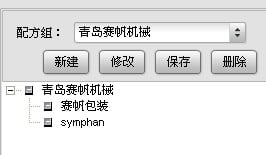
الشكل ١.٢٨
• إضافة
يُستخدَم لإضافة الوصفات الموجودة في قاعدة البيانات إلى خطة الإنتاج. اختر أولًا الوصفة المراد إضافتها، ثم انقر على «إضافة»:
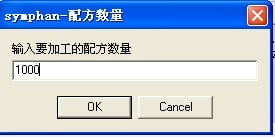
الشكل ١.٢٩
بعد إدخال الكمية، انقر على «موافق»:
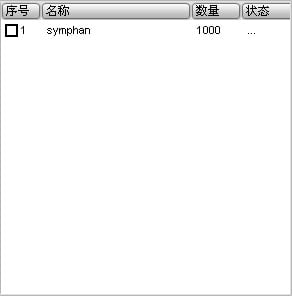
• إدراج
يُستخدَم لإدراج وصفة عاجلة: اختر أولًا الموضع الذي سيتم الإدراج فيه، ثم اختر الوصفة المراد إدراجها، وأدخل الكمية.
١.٢.٨ منطقة التحكم

الشكل ١.٣١
انطباع فتحة الخصر: يستخدم لتوسيع فتحة الخصر.
انطباع فتحة الزاوية: يستخدم لتوسيع فتحة الزاوية.
إعادة تعيين الخطأ: تُستخدم لاستعادة حالة الجهاز تلقائيًا.
السجل: رسائل خطأ النظام.
التشغيل، الإيقاف، الإيقاف المؤقت: تُستخدم لتشغيل الجهاز وإيقافه.

 أخبار عاجلة